
Sticky notes is one of the simplest yet most useful tools in Windows devices. You can use it to jot down quick reminders, important tasks, meeting highlights, or even as your to-do list. However, sometimes you may encounter situations when your sticky notes get deleted suddenly. Such instances mainly happen due to accidental deletion, app crashes, Windows updates, or syncing errors.
Fortunately, several professional data recovery software tools and built-in options are available that you can try to recover lost Sticky notes on Windows. In this guide, we’ll explore 5 ways to recover lost sticky notes on Windows, whether you’re using Windows 10 or Windows 11. Let’s get started!
Why do Sticky Notes Disappear on Windows?
Before jumping into different recovery methods to restore lost sticky notes, it’s important to understand the exact reason for that loss. Knowing the exact cause can help you identify an adequate recovery workaround. Some common reasons include:
- Accidental Deletion: This is one of the main reasons for the deletion of Sticky notes on Windows PC. You may’ve deleted the note by mistakenly clicking the “X” button or pressing the Delete option.
- App Crash or System Restart: Unexpected app crashes or your device restarting can cause system instability, memory overload, or software bugs, leading to the deletion of Sticky notes on your PC.
- Corrupted Sticky Notes Database: The Sticky Notes data file (plum.sqlite) can get corrupted due to crashes, disk errors, or incomplete Windows updates.
- Windows Update: Sometimes, the latest Windows updates may reset app settings or disconnect your Microsoft account, which results in the temporary disappearance of Sticky Notes data.
- Sign-In Issues: If you’re signed out of your Microsoft account or facing sync errors, your cloud-synced Sticky Notes may vanish temporarily.
How Do I Recover Lost Sticky Notes on Windows PC?
Now that you understand the causes of deletion of Sticky notes on your Windows devices, let’s explore the step-by-step recovery methods:
Method 01: Check for Sticky Notes in Outlook or OneNote
If you’ve synced Sticky Notes with your Microsoft account, all your notes will be backed up in the cloud. Microsoft securely stores these synced notes under your account, allowing you to access and recover them anytime through Outlook or OneNote. All you have to do is:
- Launch any web browser and go to https://outlook.live.com.
- Log in using the same Microsoft account that you used for Sticky Notes.
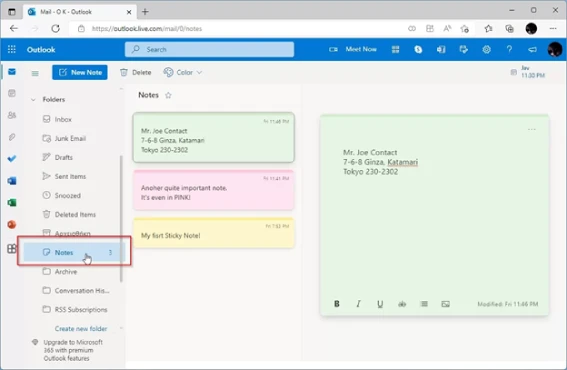
- After logging in, click on the Notes section from the left sidebar (generally located under the “Folders” menu).
- Alternatively, you can visit https://www.onenote.com/stickynotes to access saved notes using OneNote.
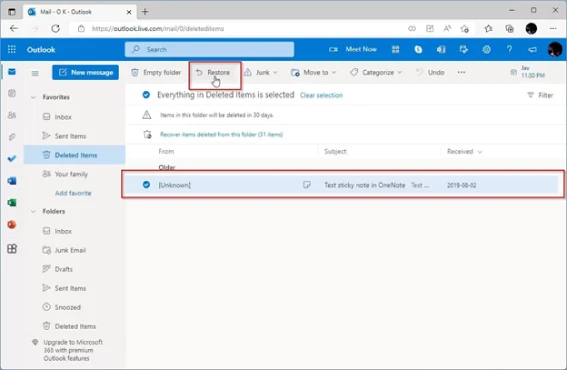
- Once you find the required notes, click Restore to save the recovered them back to your device.
Method 02: Recover Lost Sticky Notes from File History Backup
Windows provides an in-built File History backup utility that, when enabled, automatically creates regular backups of your Sticky Notes. If you’ve lost your Sticky Notes, follow the below steps to restore them using File History backup:
- Type CP in the search box of your desktop and launch the Control Panel.
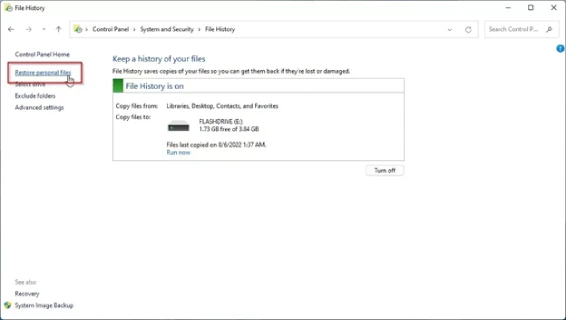
- Go to File History > Restore personal files from the left pane.
- Now, follow this path in File History: C:\Users\<YourUsername>\AppData\Roaming\Microsoft\Sticky Notes\.
- Locate the sqlite file and browse through different versions (using the arrow keys located at the bottom).
- Select the version you want to recover and click Restore.
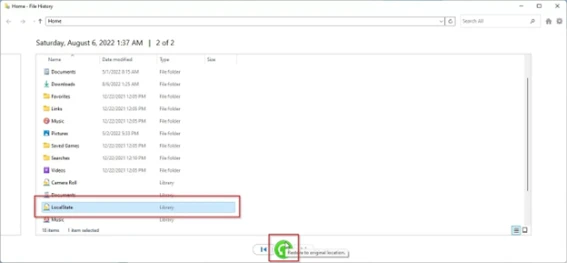
Once restored, open Sticky Notes again — your old notes should reappear.
Method 03: Recover Sticky Notes Using .snt Files
Older Windows OS versions (like Windows 7 or early Windows 10 builds) automatically create .snt files that store your deleted Sticky Notes. Follow the below steps to recover your deleted or lost Sticky Notes using .snt files:
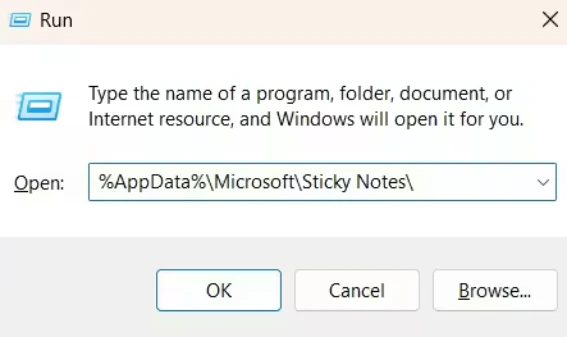
- Press the Windows + R keys to launch the Run
- Type “%AppData%\Microsoft\Sticky Notes\” in the box and press the Enter key to open Sticky Notes.
- Now, find the Sticky Notes (.SNT) file, which will contain information about your deleted notes.
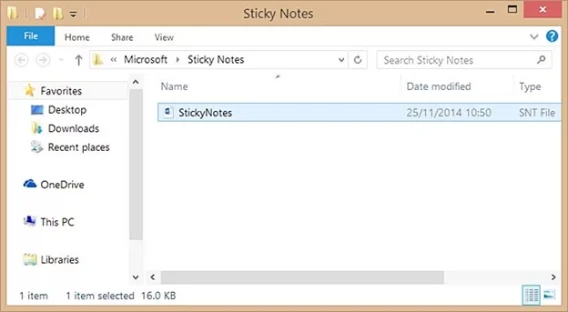
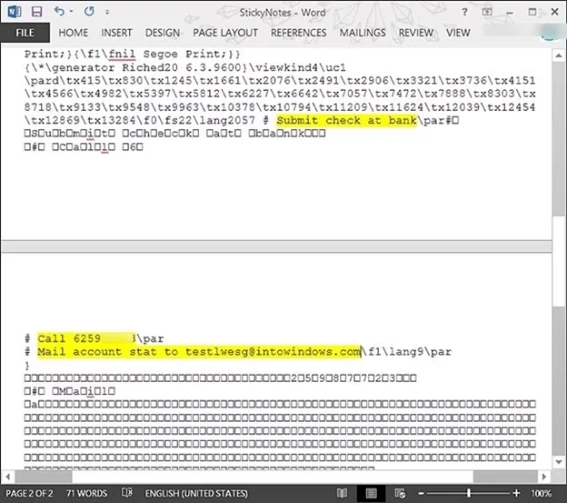
- Right-click on the file and open it with a text editing app like MS Word, WordPad, Notepad, etc.
- Once the file is open in an editor (preferably MS Word), it may prompt you to decode the content. Simply find the text and save it to another location.
Method 04: Try Third-Party Windows Data Recovery Software
If you don’t have a backup of lost Sticky notes on your Windows PC, don’t lose hope. Third-party professional data recovery software like Stellar Data Recovery Professional allows you to restore lost or deleted files, including Sticky notes, in a few simple clicks. Sticky Notes stores all your note data in a local database file named plum.sqlite, located at: C:\Users\<YourUsername>\AppData\Roaming\Microsoft\Sticky Notes\. This recovery software performs through scanning of your storage device to find the deleted notes.
Whether your Sticky notes are deleted due to accidental deletion, formatting, system errors, or any other reason, this all-in-one professional data recovery software easily restores your lost notes. All you have to do is:
Step 1: Start by downloading the Stellar Data Recovery Professional software from the official website on your Windows PC. After that, follow the on-screen instructions to install the software.
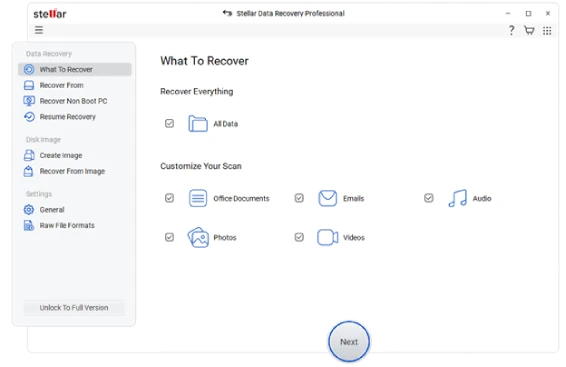
Step 2: Launch the software and from the homepage, select All Data and click Next to proceed.
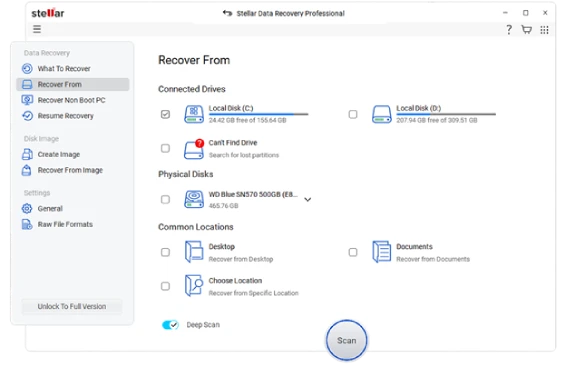
Step 3: Next, choose the storage location where the deleted Sticky notes were stored (typically, it’s the C: drive) and click Scan to initiate the scanning process.
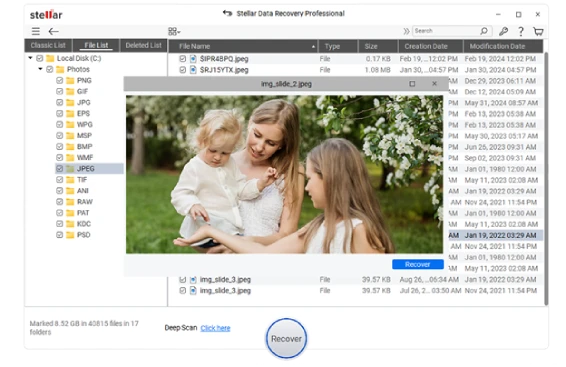
Step 4: After scanning, preview the recoverable files and click Recover to save the recovered Sticky notes to a safe location.
Additional Tips to Avoid Losing Sticky Notes in the Future
Now that you are familiar with various recovery workarounds to restore lost sticky notes, let’s ensure such instances won’t happen again. For this, you can follow these preventive tips:
- Enable Cloud Sync: Always sync the sticky notes with your Microsoft account so your notes automatically sync to the cloud (accessible from OneNote or Outlook).
- Turn On File History: Enable File History in Windows to automatically back up important folders, including AppData.
- Export Notes Occasionally: You can manually open Sticky Notes, copy all text, and paste it into a Word or Notepad file as a backup.
- Keep Your System Apps/OS Updated: Outdated apps or OS versions can also cause sync issues, causing deletion of notes or other files from your device. To avoid this, always keep Sticky Notes and Windows updated.
Conclusion
Losing Sticky notes on your Windows PC can put you in trouble, especially if they contain crucial reminders or work information. If you ever encounter such an issue, go with the aforementioned free data recovery methods to restore your lost Sticky notes. For easy and quick recovery, make a habit of syncing and backing up your data. These backups really help a lot in unexpected data loss instances. Moreover, if you don’t have any backup, use professional data recovery software tools like Stellar Data Recovery Professional to recover your files effectively.